In order to restrict USB on your in-house computer, we go to https://www.pona.com.tr/download/ and click on the USB Blocking tab. Here we select and download the one suitable for our operating system.

We extract the downloaded application from the zip and install the one suitable for our operating system.
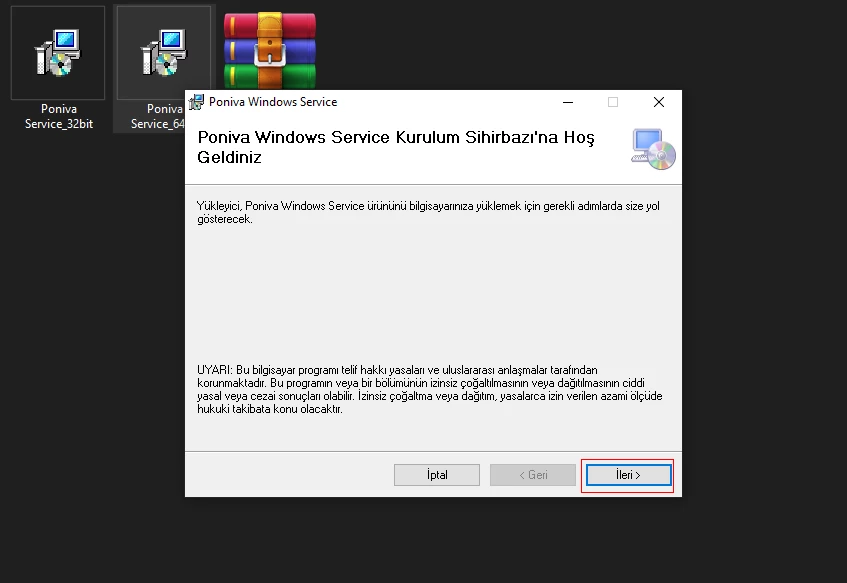
Installation is complete. You need to install this program on all PCs that you will restrict.
Then click on the Settings->Group Management menu on the Firewall Interface screen.
Here we will operate according to the default group. You can continue by doing the same in your related groups.
Click on the Default group and go to the USB Settings tab. Select the USB Memory Usage option as Disabled. If you want it to read from the USB memory but not assign data to the memory, you can select Read Only.
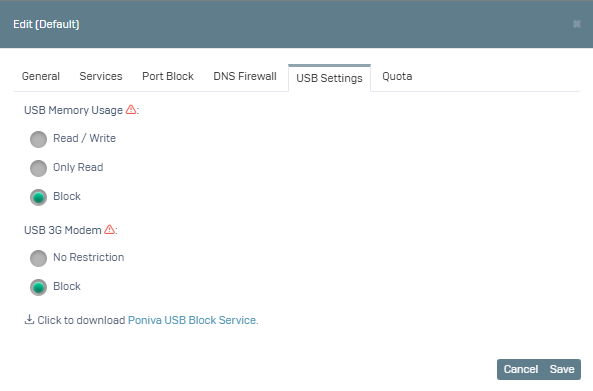
After saying save, we test it.
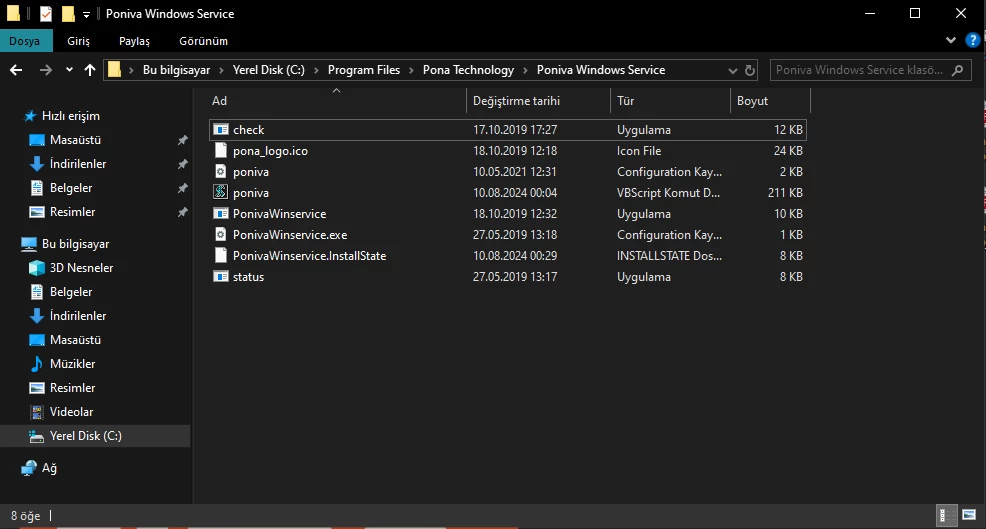
If your USB stick is still working, go to the directory where the program is installed on the respective PC. Here you can run the check.exe file as administrator and then test it again.
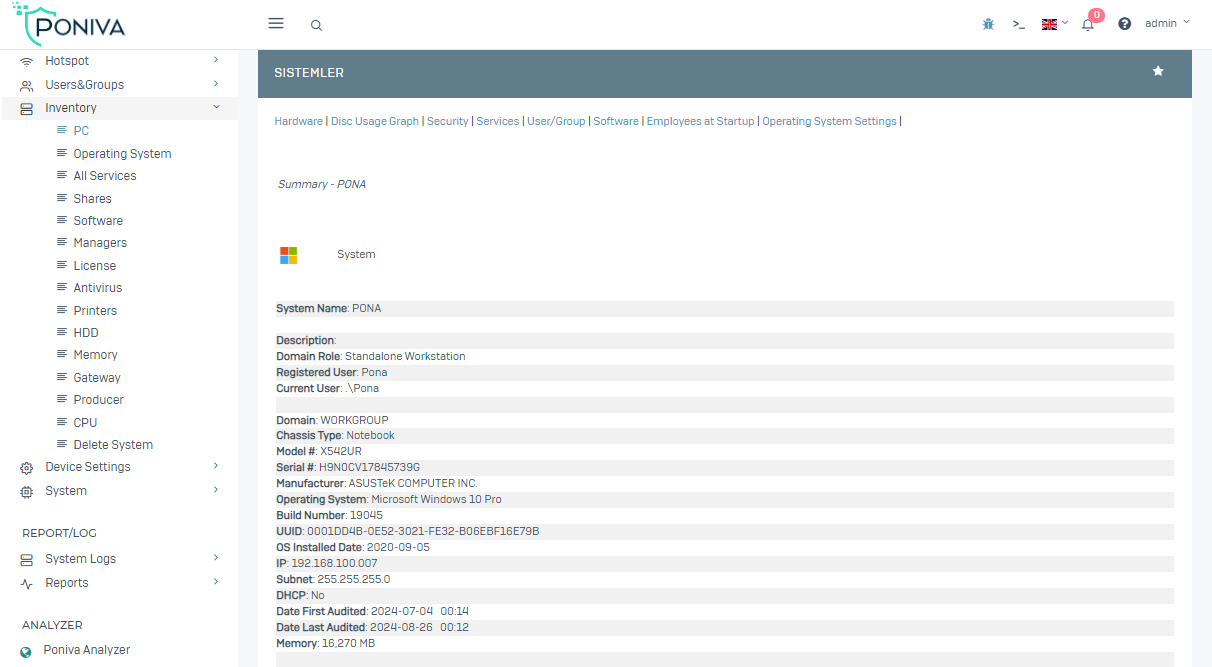
You can also get more detailed information about the PCs on which the program is installed. For example, programs installed on the PC, versions, operating system, etc. For this, you can examine the Inventory menu on the Interface screen.