
A remote user can establish a secure connection with the Poniva SSL application she will install on her computer.
To activate the SSL VPN feature, click VPN->SSL VPN->Settings on the Interface screen.
Note: Here it is assumed that the center has a static IP. If you do not have a static IP, you cannot use this feature.
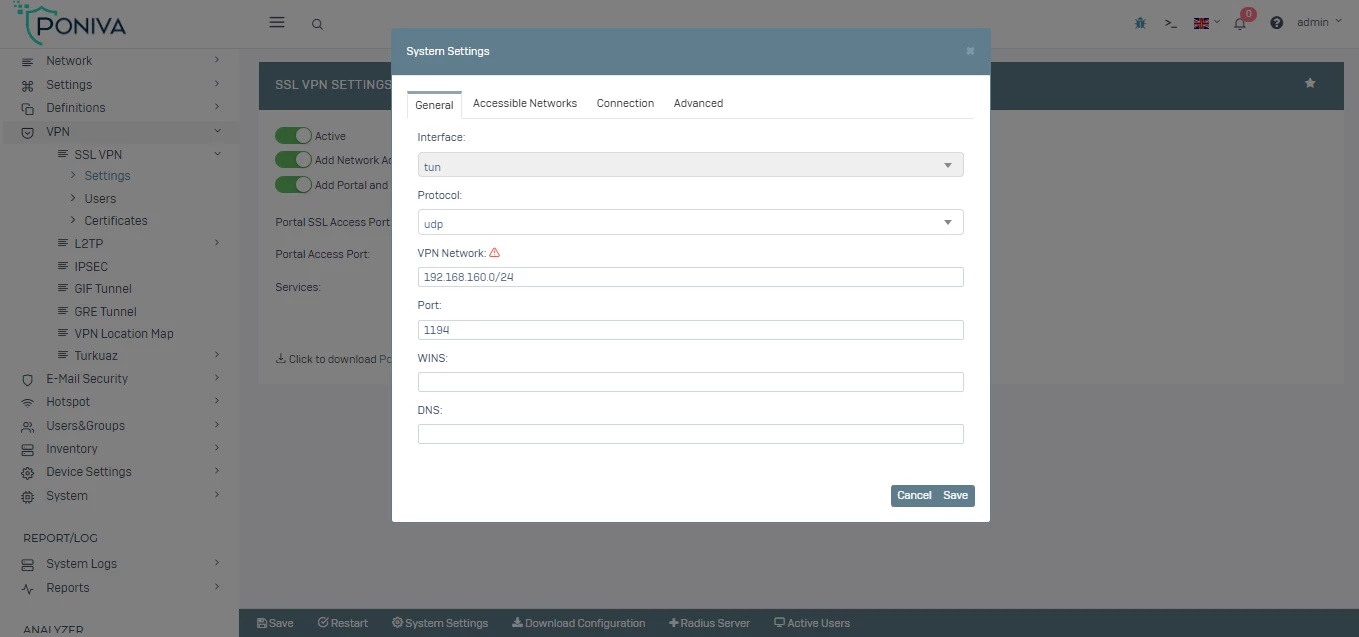
Before activating SSL VPN, we need to configure the system settings.
By clicking the System Settings button; The IP you will give to the VPN Network section must be outside the Firewall's IP address block. (For example 192.168.160.0/24)
VPN port default 1194.
You can leave the WINS and DNS servers blank or write the firewall ip address.
In the Accessible Networks section, you can write the networks you want users coming from VPN to access when you select this option Manually.
If you want to manage the traffic of your users coming with vpn, you can activate the option to leave users through this server.
We say save and then we activate the service and save it.
SSL VPN feature is now active, you can test the connection by adding users.
If your line is not in metro or bridge mode, you must also have the DMZ feature active on your modem.