In the Poniva Firewall menu, click on the VPN->SSL VPN->Users menu.
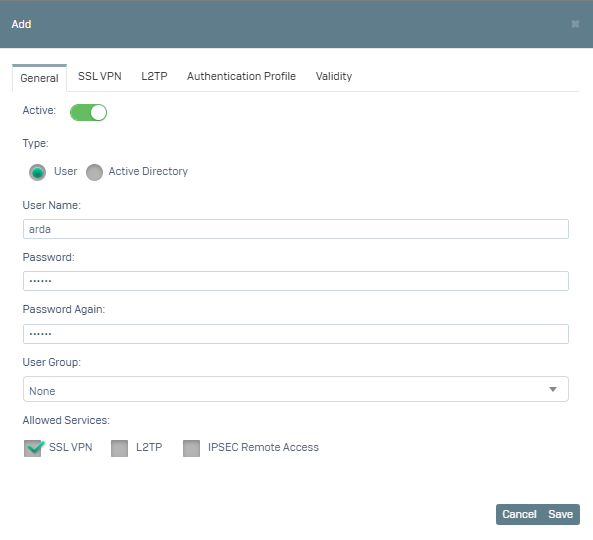
Click Add and start configuring our new user.
1- On the screen that opens, fill in the Username, Password and Allowed services (SSL VPN option is activated) fields.
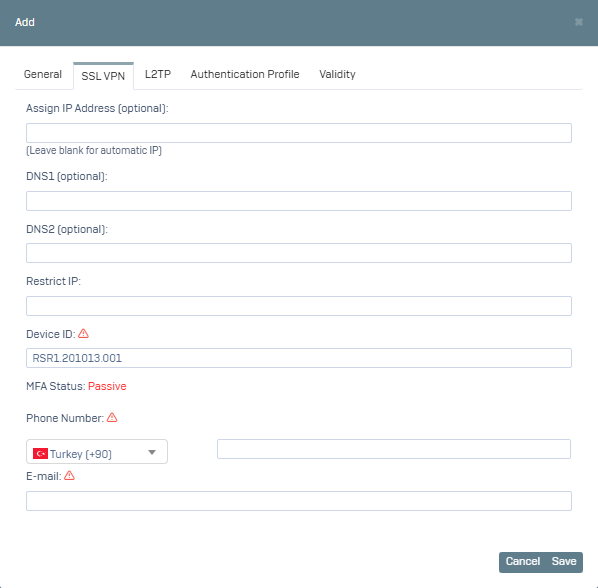
2- Go to the SSL VPN tab, fill in the Device ID (Device UUID for mobile devices, MAC address for other devices) field.
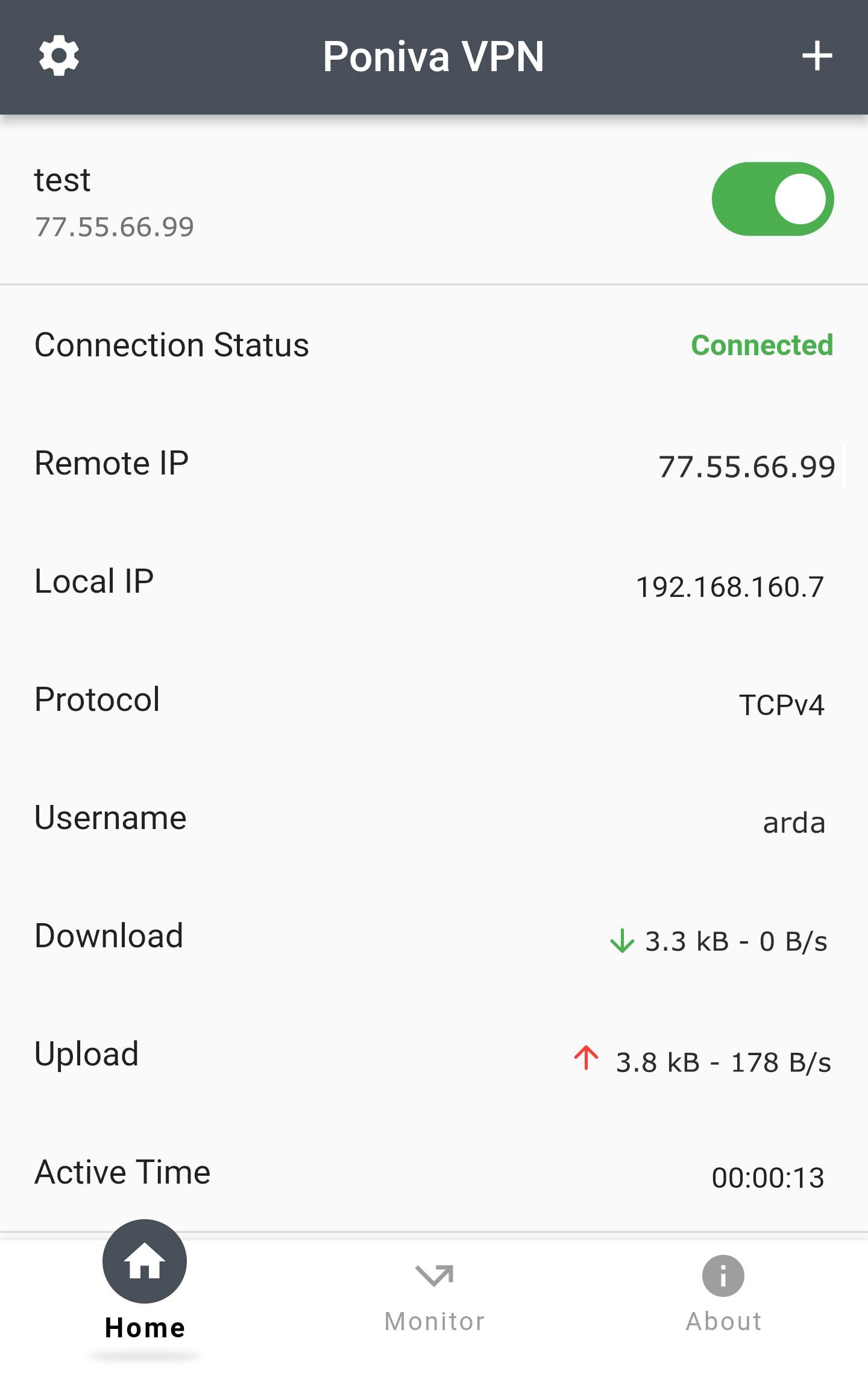
After clicked Save, we install and run the Poniva VPN application on our mobile device (Andorid/IOS).
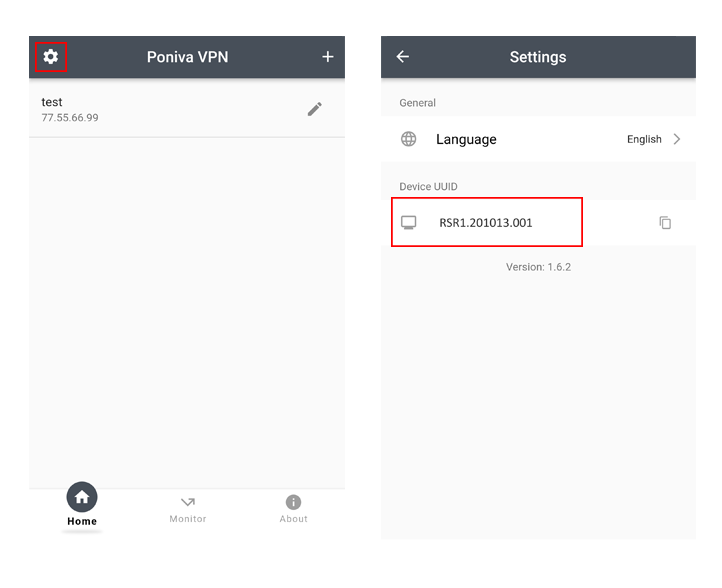
Here we click on the Settings icon and copy the Device UUID field.
We paste it into the Device ID field of the relevant user in the Poniva Firewall interface. For other devices, simply type the MAC address.
We test after saying save.
Now your user can only connect via the device you specify.
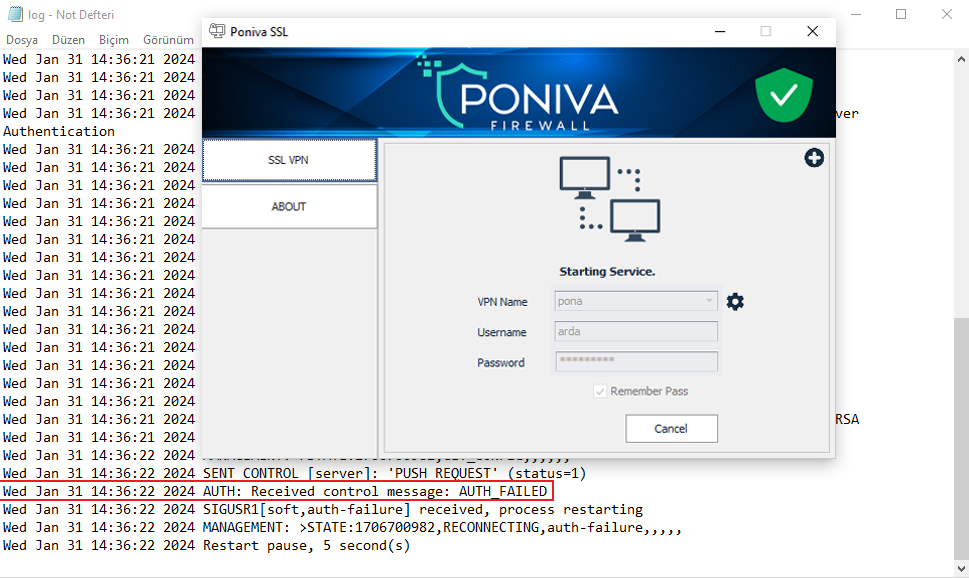
When we want to establish a VPN connection from a Windows PC, the connection will fail.