
A remote user can establish a secure connection with the Poniva SSL application she will install on her computer.
It is assumed here that the Poniva interface has the necessary configurations for SSL VPN.
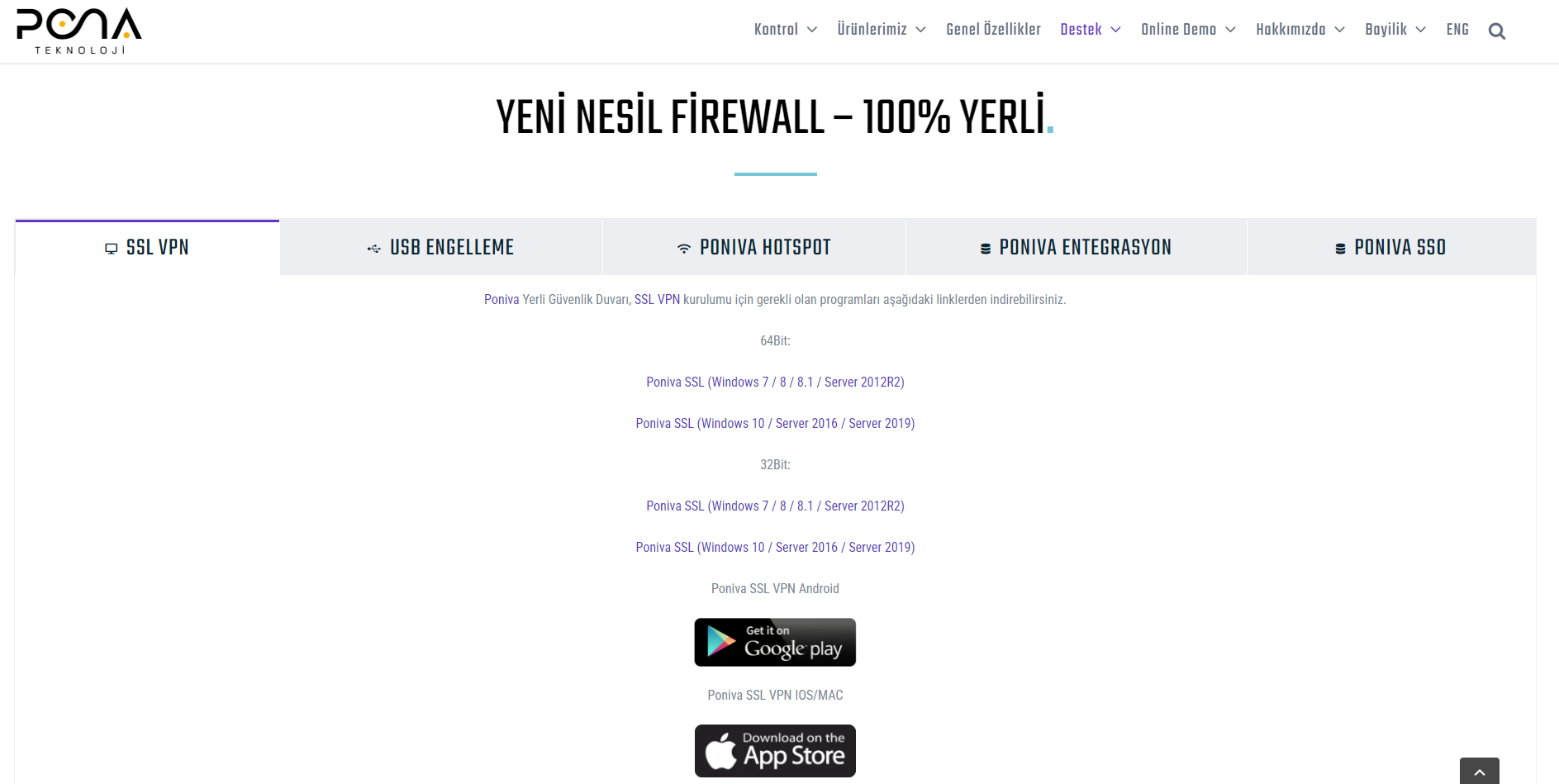
We go to https://www.pona.com.tr/download/ on your computer and click on the SSL VPN tab. Here we download the application suitable for your operating system.
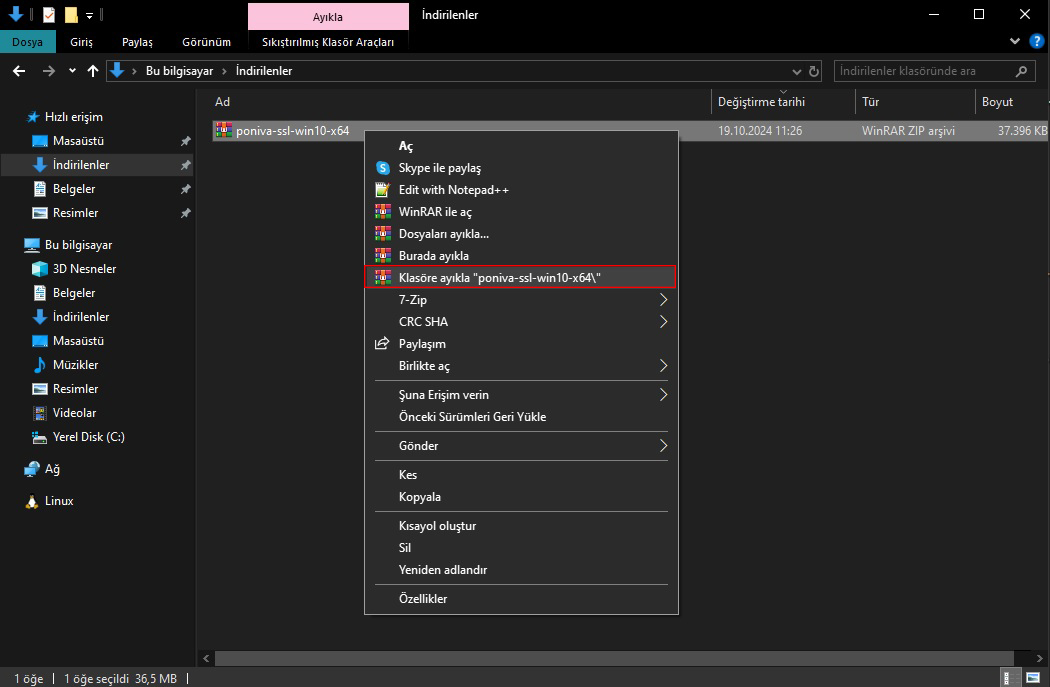
We extract the application we downloaded from the zip.
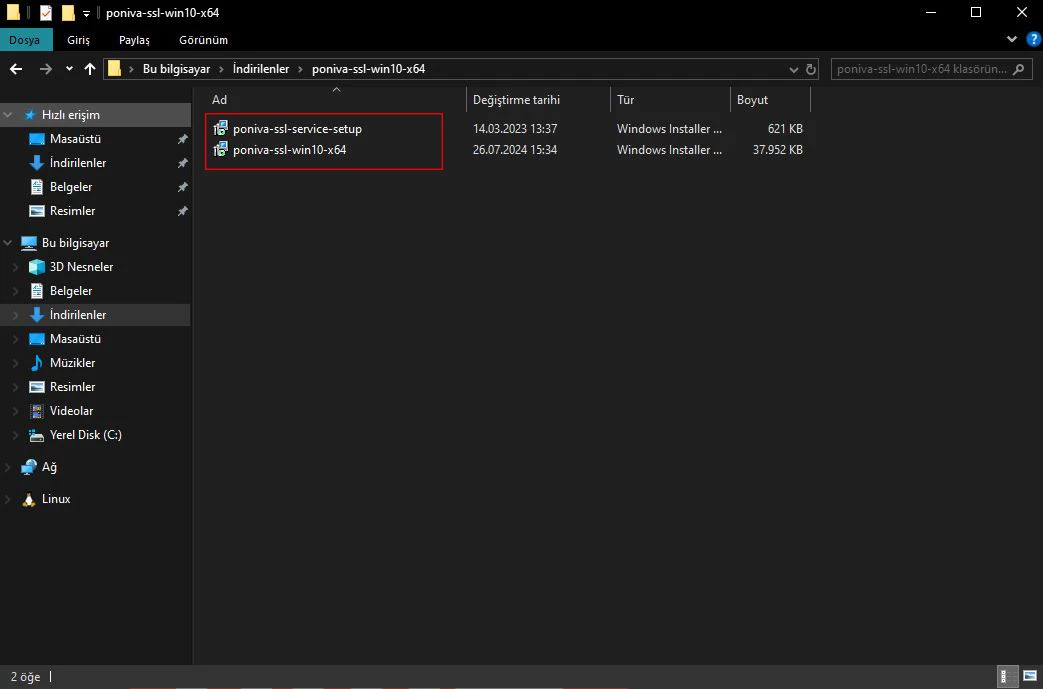
We also install the 2 Setup files in the folder.
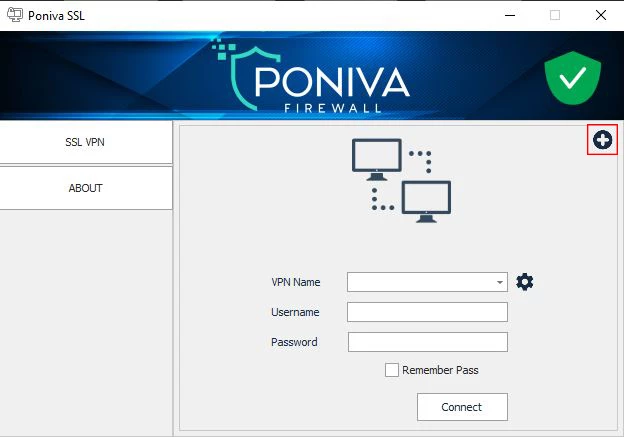
After completing the installation, we run the Poniva SSL application.
Click the (+) button on the application screen that opens.
We create a new VPN definition. Here, the VPN Name, Gateway (Poniva Public IP address is written) and Username (the username we created in the Poniva interface) fields are filled.
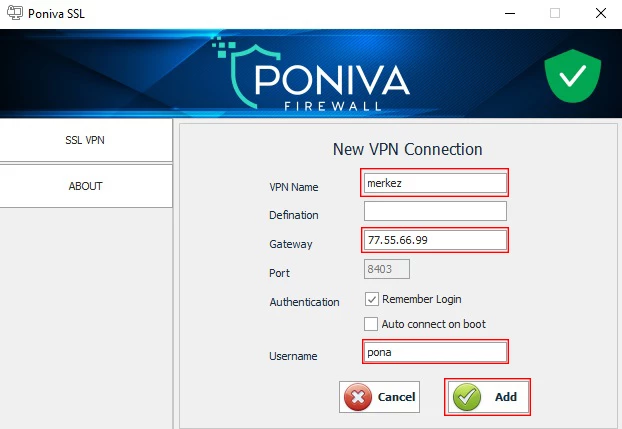
Click on the Add button.
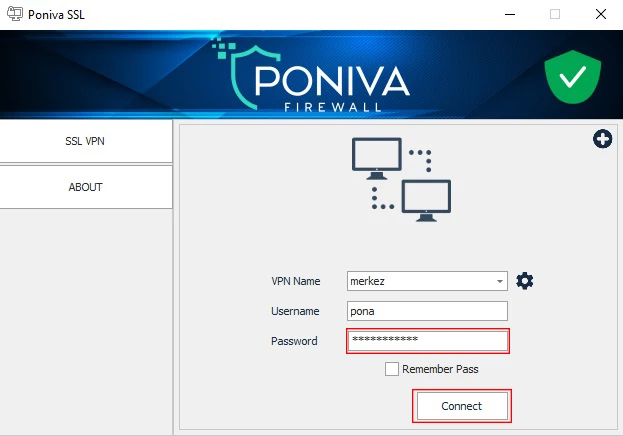
We select the VPN we have created on the application screen and after filling in the Password field, click the Connect button.
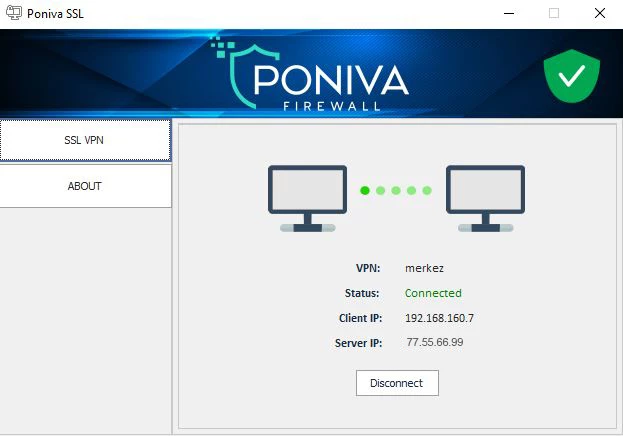
You can test it after the VPN is connected.
**If you get TAP-Windows Adapter error after clicking the Connect button. It may not have been installed during installation or TAP-Windows Adapter may be passive on your network adapters. You can reinstall TAP-Windows Adapter by going to the application directory.
**If the service is stuck on the startup screen, you can right click on the application icon at the bottom right and examine the logs.
**If you are getting a User/IP blocked error, you can unblock the relevant user/IP by going to the User&Groups->Blocked User/IP menu in the Firewall interface.