
If you want to separate your guest network from your local network, click on any available port in the Network->Interface menu and plug the Access Point device into this port.
Here; It is assumed that our Local Network is 192.168.1.0/24 and our Guest Network is 192.168.19.0/24.
1- Here we select Zone LAN and give an IP that is not in our local area. We activate the DHCP option and save.
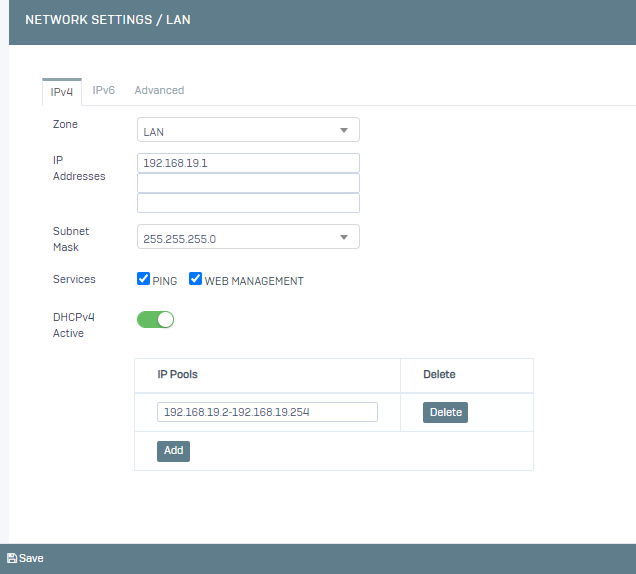
We have configured our LAN settings. Now we will add a firewall rule to prevent access from our guest network to our local network.
We go to the Settings->Firewall Rules menu.
Let's start configuring the settings of our new rule by clicking Add.
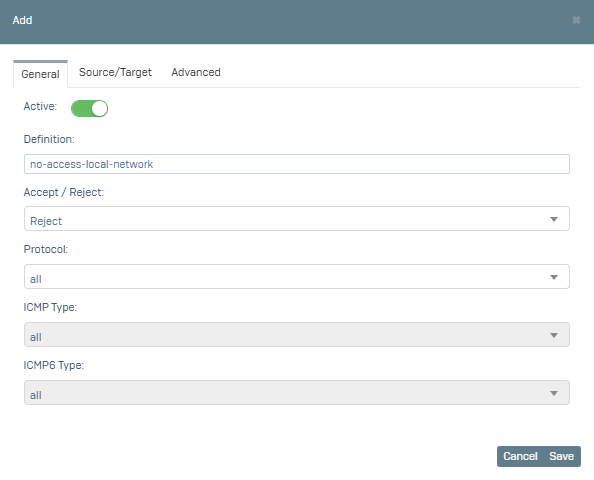
1- On the screen that opens, fill in the Description, Accept/Reject, Protocol fields in the General tab. Here, we set our rule as Red because we will block access to our local from the guest network. We want to block all protocols by selecting Protocol all, but you can also block specific protocols.
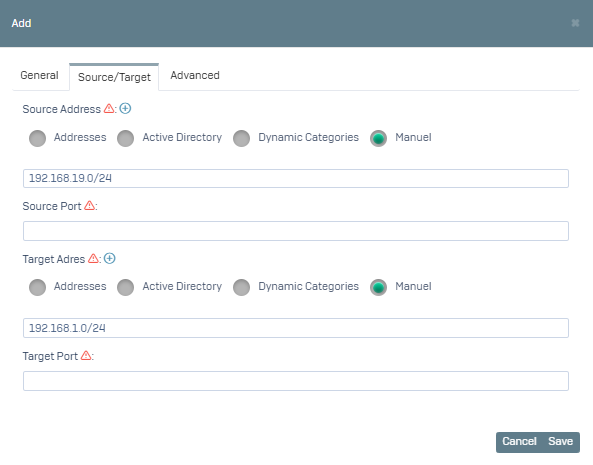
2- Switch to the Source/Destination tab, where the Source Address field is the field where we specify the address from which the request will be sent. We write the network of our guest network as Source Address. Target Address field is the field where we specify to which address the request is sent. As Target Address, we write our local network. We leave the Source/Target port fields blank.
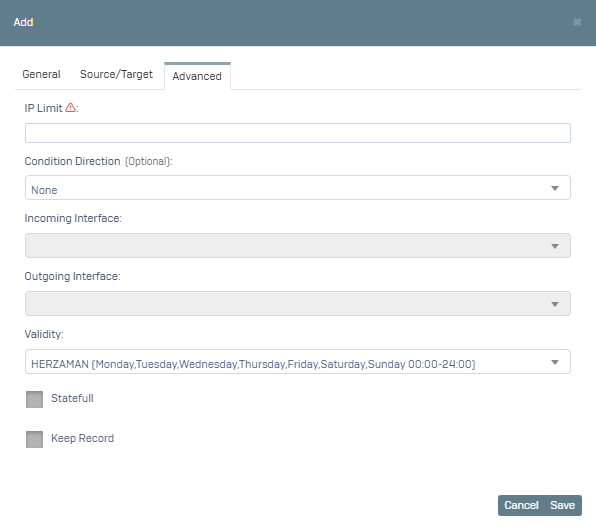
3- Switch to the Advanced tab, here you can specify the hours during which this rule will be active by selecting Validity. The default HERZAMAN option is active.
After you click Save, users on your guest network will no longer have direct access to your local network.