
A hotspot is a customized login page within an organization/company that requires users to go through before connecting to the Wi-Fi network.
*In order to use the Hotspot feature, you need to connect an Access point to your Firewall or Switch.
For hotspot configuration, click on the Hotspot->Settings menu on the Interface screen.
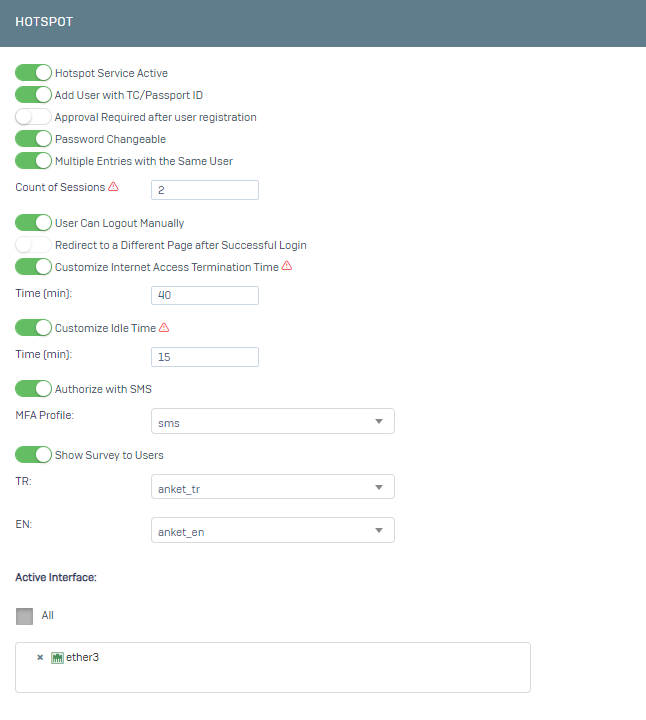
On the screen that opens, we activate the Hotspot Service Active option. Other options are optional for you.
Add User with TC/Passport ID: When you activate this option, after your users enter their Turkish ID or Passport information on the screen that comes for internet access, a verification process takes place through mernis. If the information is correct, a password is defined for the user and they can access the internet with this password.
Approval Required after user registration: When you activate this option, the operation in the previous option applies. In addition, internet access is not opened after the user logs in. However, internet access is opened after the Administrator gives approval for the relevant user. You can follow the users waiting for approval from the Hotspot->Waiting for Approval menu.
Password Changeable: When you activate this option, your users can change their existing passwords on the hotspot login screen.
Multiple Entries with the Same User: When you activate this option, your users can log in on more than one device. You can limit the number of these sessions if you want. (Default 0 is unlimited)
User Can Logout Manually: When you activate this option, your users will be directed to a screen on the hotspot login screen where they can end their session after logging in. He can end his session at any tim
Redirect to a Different Page after Successful Login: When you activate this option, your users will be redirected to the page you specify after logging in. (For example: https://www.pona.com.tr) You cannot use this option if the User Can Logout Manually option is active.
Customize Internet Access Termination Time: When you activate this option, you can specify how long after your users log in, they will be automatically kicked out of the system. The default is 60 minutes.
Customize Idle Time: When you activate this option, if your users do not generate any traffic after logging in, they will be automatically kicked out of the system after the time you specify. The default is 15 minutes.
Authorization with SMS: When you activate this option, the sms option is active on the hotspot login screen. Your users can log in with the information sent to the phone number. In order to use this option, sms provider information must be defined.
Show Survey to Users: When you activate this option, the survey you select here will be shown to your users when they log in and internet access will not be opened until the survey is completed. To use this option, you must have a survey defined in the Hotspot->Surveys menu.
Active Interface: You can specify which interfaces, IPs or networks the hotspot service will be active on.

If you want to change the logo, click on the Device Settings->Customisation->Page Customisation menu.

Here you can upload a logo in png format by clicking on the upload button under Hotspot Page Actions.