
To ensure that certain computers always get the same IP address, you need to make a DHCP IP reservation. This way, even if their devices are turned off and on, they will still receive the IP address you set.
On the interface screen, click on the Network->DHCP menu.
Click on the DHCP settings of the respective interface. For example ether1
On the screen that opens, go to the IP Reservation tab.
IP, MAC fields are filled here. DNS1 and DNS2 options are optional.
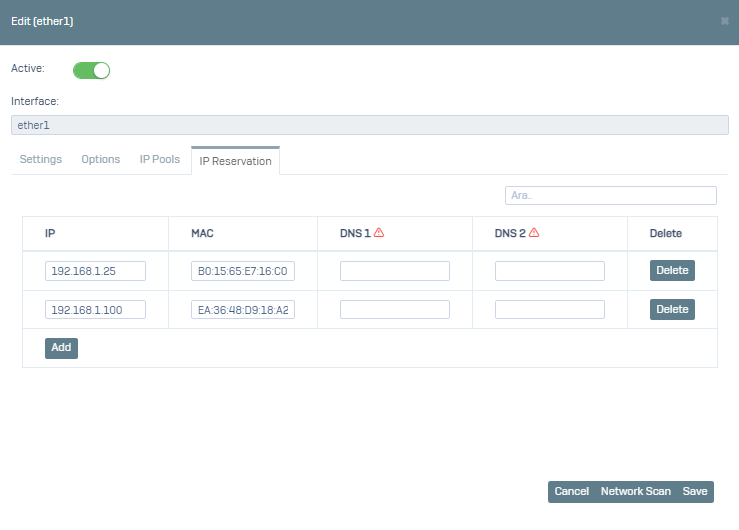
When you click on the Network Scan button, you can view and add your users connected to the relevant interface on the screen that opens.
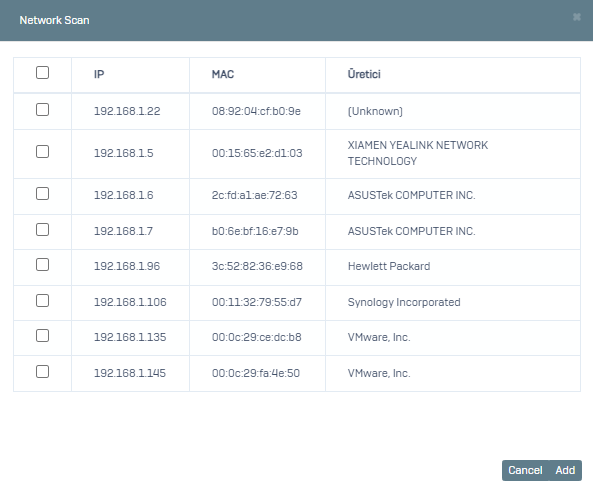
Save.
You can also make your existing definitions from the Definitions->Addresses menu. You can also use the definitions you make here in menus such as Group Management, Firewall Rules.
Click Add on the screen that opens.
Description, Type (we select IP/Netmask since we will use it as a DHCP reservation), Address, MAC (you can click the Find Mac button or enter it manually) fields are filled. We check Add to DHCP IP Reservation list.
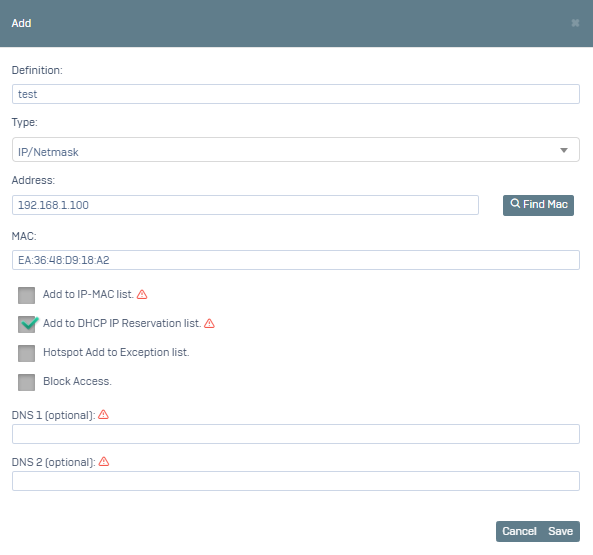
Save.